Scenes and automations do different jobs
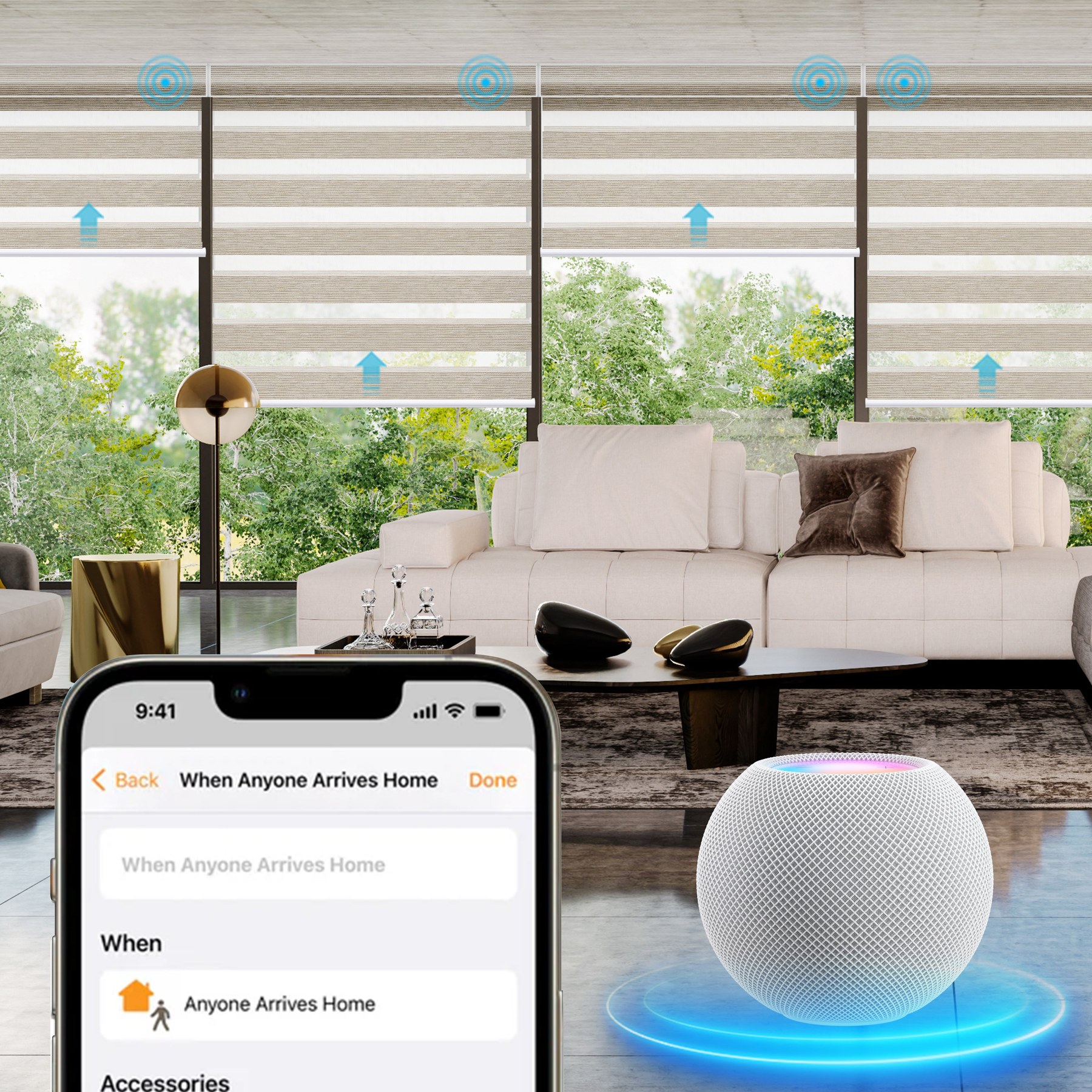
Apple Home can control compatible window coverings as accessories, group them in scenes, and use automations to make them move at a chosen time or in response to a supported trigger. A scene is a set of actions you can call on demand, such as “Good Morning” or “Movie Time.” An automation adds a trigger, such as a time of day, someone arriving home, or a compatible sensor detecting an event. Apple’s Home app guide describes scenes and automations and notes that a home hub is needed for certain time-, location-, and sensor-based automations (Apple Support: create scenes and automations).
That makes a shade scene different from a schedule. A scene is useful when you want to decide in the moment; an automation is useful when you want the same action to happen consistently. Most households benefit from both: a few practical schedules plus one or two named scenes for activities that do not happen at the same time every day.
Before planning, confirm that the exact motor, bridge, and shade model work with Apple Home or HomeKit. “Smart” does not automatically mean Apple Home compatible. World Wide Shades can help check a motor option against your preferred ecosystem, as well as review the shade dimensions and window-side clearance. Start in the shade builder or contact our team before you select a motor.
Check device, hub, and position support
Find the manufacturer’s compatibility listing for the exact model and connection method. A shade may pair directly, require a bridge, or need a particular radio protocol. Look for the official Works with Apple Home or Matter designation on the manufacturer’s product page and follow that product’s setup instructions. Apple’s Home app accessory directory lists categories for windows and coverings, but the exact accessory still determines available controls.
When the shade appears in the Home app, test its control manually. Confirm the direction of movement, whether the accessory offers intermediate positions, and whether the position indicator reflects the real shade. Some integrations expose only open and close; others permit a target such as 40% or 75%. Do not design a sun-management routine around position control until you have verified that the accessory supports it.
Check the home hub requirements shown in the current Home app and the device maker’s instructions. Apple says a home hub enables remote control and automations for accessories, including time-, location-, and sensor-based triggers. Apple’s supported hub hardware and setup requirements can change, so use the current support documentation rather than relying on an old online checklist.
World Wide Shades can help you compare motorized configurations and make sure the chosen operating style suits the room. Call (844) 674-2716 or use contact if you want to confirm compatibility before ordering.
Build dependable schedules
Create a morning scene that raises bedroom shades to an intermediate position, if the motor offers position control. Then decide whether the routine should run at a fixed clock time or relative to sunrise. A clock time is predictable throughout the year; a sunrise-based trigger tracks the seasonal shift in daylight but may move earlier or later than the household’s wake time.
A practical approach is to begin with a fixed time, observe it for a week, and adjust the schedule before adding more automation. If different bedrooms have different needs, keep them in separate scenes. A person working overnight should not be included in the same morning group as everyone else.
Create an evening scene that closes shades on exposed windows while leaving patio doors or frequently used windows available. If the Home app offers a time or sunset trigger for your setup, select the one that best matches the household. Test the result while someone is home, not for the first time during a trip.
Think about seasonal differences: at 4:30 p.m. in winter the room may already be dark, while that same time in summer can still be bright. You can keep a separate manual scene for “Privacy Now” rather than creating a long list of calendar exceptions. Browse fabric swatches from World Wide Shades to compare daytime openness with nighttime privacy in your actual room.
Apple Home supports automations based on people arriving at or leaving a home when the appropriate home hub and location settings are configured. This can be convenient for privacy, but location-based triggers require each participating device and household member to be set up correctly. Review who is included in the home and test the automation with a controlled arrival or departure before relying on it.
An “Away” automation should move only the shades that make sense for the home. Consider whether a closed roller shade blocks useful daylight for indoor plants or makes a room appear unoccupied. A routine is a comfort feature, not an alarm, lock, or guaranteed security measure.
Use sensors with clear rules
Apple Home can start an automation when a compatible sensor detects an event. Depending on the sensor and integration, that may include motion, contact, temperature, or light-level information. The Home app only acts on sensor details that the specific accessory exposes. Do not assume that any motion detector can report sunlight or that a shade can automatically follow the sun without a suitable accessory and supported rule.
A motion sensor can support an occupancy routine, such as raising a shade in a frequently used living area during the day. Avoid programming movement on every motion event if a person may be in the room for a long period; repeated open-close cycles can be distracting and consume power. Add a time window or a separate condition if the Home app and sensor support it.
In a bedroom or nursery, use a schedule or manual scene if a motion-triggered change might wake someone. Where children are present, prioritize cordless window coverings and place furniture away from accessible window-treatment cords. For safety basics, see the CPSC’s window-covering guidance and our child-safe window-treatment guide.
If your sensor reports ambient light, you might use it to close a shade when a room becomes too bright, but test thresholds at multiple times of day. A sensor located on a shaded shelf can behave differently from one next to a sunny window. Set one change at a time, observe for several days, and record whether it closes too often.
Temperature automation also needs care. Room temperature is affected by heating, cooling, insulation, and air movement—not only window sun. A sensor in a draft or direct sunlight may report values that are not representative of the whole room. Use shade automation as one component of comfort control, not as a substitute for a thermostat or energy audit. Our guide to energy-efficient window shades covers fabric and orientation choices.
Make routines understandable and easy to override
Use names that describe the result: “Morning Light,” “Close West Windows,” or “Movie Time.” Keep scenes short enough that a household member can predict what will happen. If one scene controls five shades, list those accessories in the scene and verify none of them is a door or a window that must remain accessible.
Test automations in a safe order:
- Confirm each shade works manually in the Home app.
- Create a scene with one or two shades and test it on demand.
- Add one trigger to an automation.
- Observe at least two complete cycles before adding a sensor or another room.
- Review the activity and automation settings after changing a device name or room.
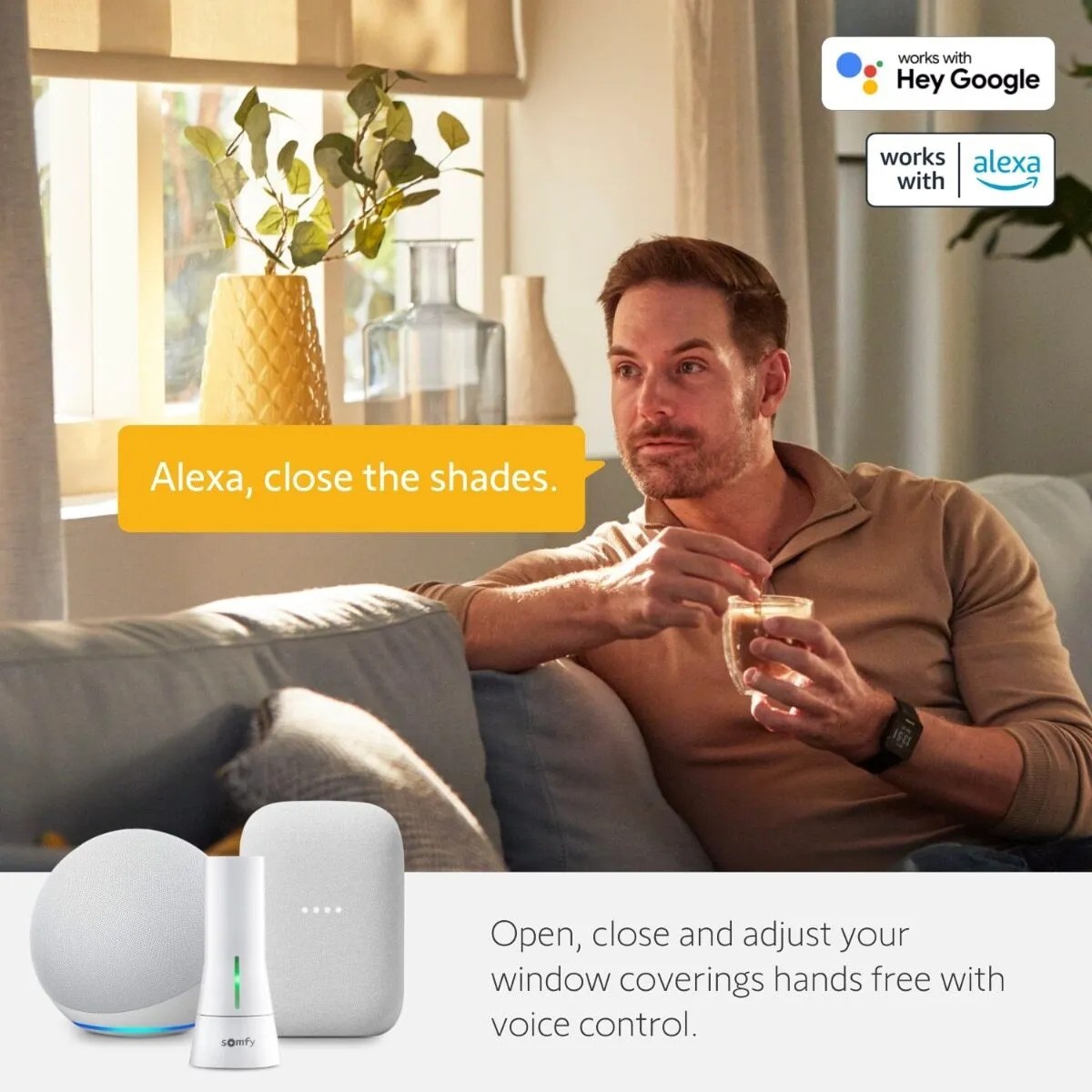
Keep a wall switch, remote, or the manufacturer’s approved manual control available. If a bridge, home hub, Wi-Fi network, or internet service is unavailable, the preferred fallback depends on the shade’s motor. World Wide Shades can help review the control method before you purchase. If your home also uses Alexa, compare Alexa routines for motorized shades with the Apple Home approach; our HomeKit scene setup guide covers another practical starting point.
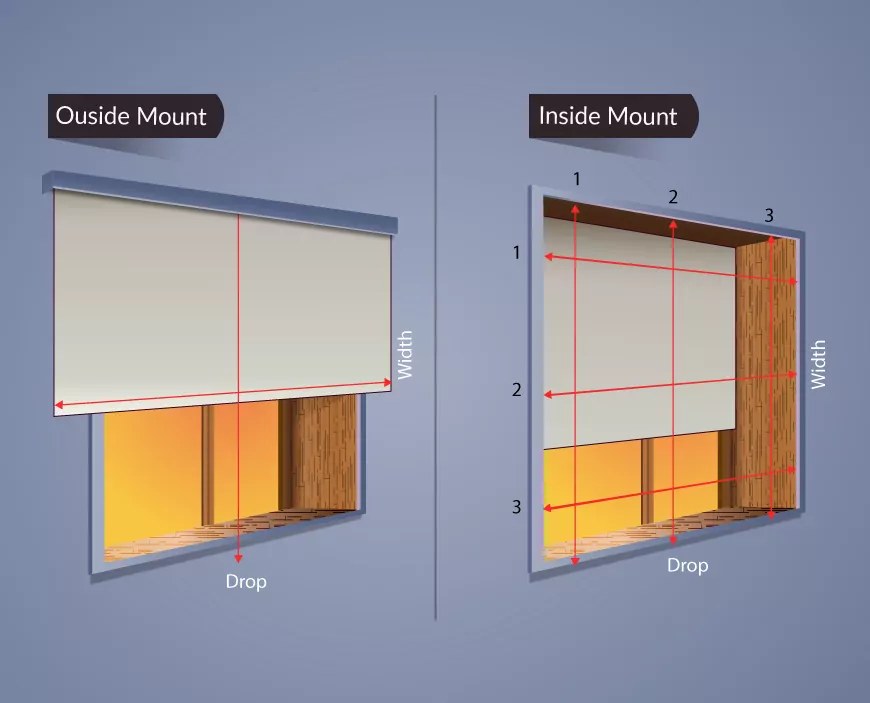
World Wide Shades can also help with fabric, coverage, and mounting—not just connectivity. Use the custom shade builder, order swatches, or call (844) 674-2716 to discuss a configuration. For help with broader smart-home planning, see motorized shade setup and the Alexa and Google Home comparison.
Privacy and household sharing
Review location permissions and household access before setting up an arrival-based routine. Apple Home scenes and automations may involve accessories shared with other household members, so everyone should understand which windows will move and when. Avoid names that reveal sensitive personal details through voice prompts, and do not put a child’s room into a whole-home scene without considering nap and bedtime schedules. World Wide Shades can help keep each automated group focused on the rooms you intend to include.
Use a manual scene for situations where you want immediate control without changing the schedule. If a routine behaves unexpectedly, pause or disable it in the Home app, test the shade manually, and then inspect the trigger and accessory list. Change one automation at a time so you can identify which setting caused the behavior.
Frequently asked questions
Some do, but compatibility depends on the exact motor, bridge, or Matter implementation. Check the manufacturer’s current compatibility information and test the shade in the Home app before relying on scenes or automations.
A scene applies a named set of accessory actions when you activate it. An automation runs a set of actions after a trigger, such as a time, location event, or sensor event supported by the accessories and Home app.
Apple’s documentation says a home hub is needed for remote control and for certain automations, including those based on time, location, and sensors. Check Apple’s current home hub requirements and your accessory’s instructions, because compatibility can change.
Only when a compatible sensor provides light information and the Home app or an approved integration exposes a usable trigger. Sensor placement and room conditions affect readings, so test any light-based automation before making it a daily routine.
Only if the shade’s motor and integration provide position control. Test the position from the Home app before including it in a scene, and verify that the shade actually reaches the selected position.
Remote access and automations may be unavailable depending on the system. Keep the shade’s approved local control method accessible and ask the manufacturer how that specific motor behaves without its hub or network.