What “Hub Disconnected” Usually Means
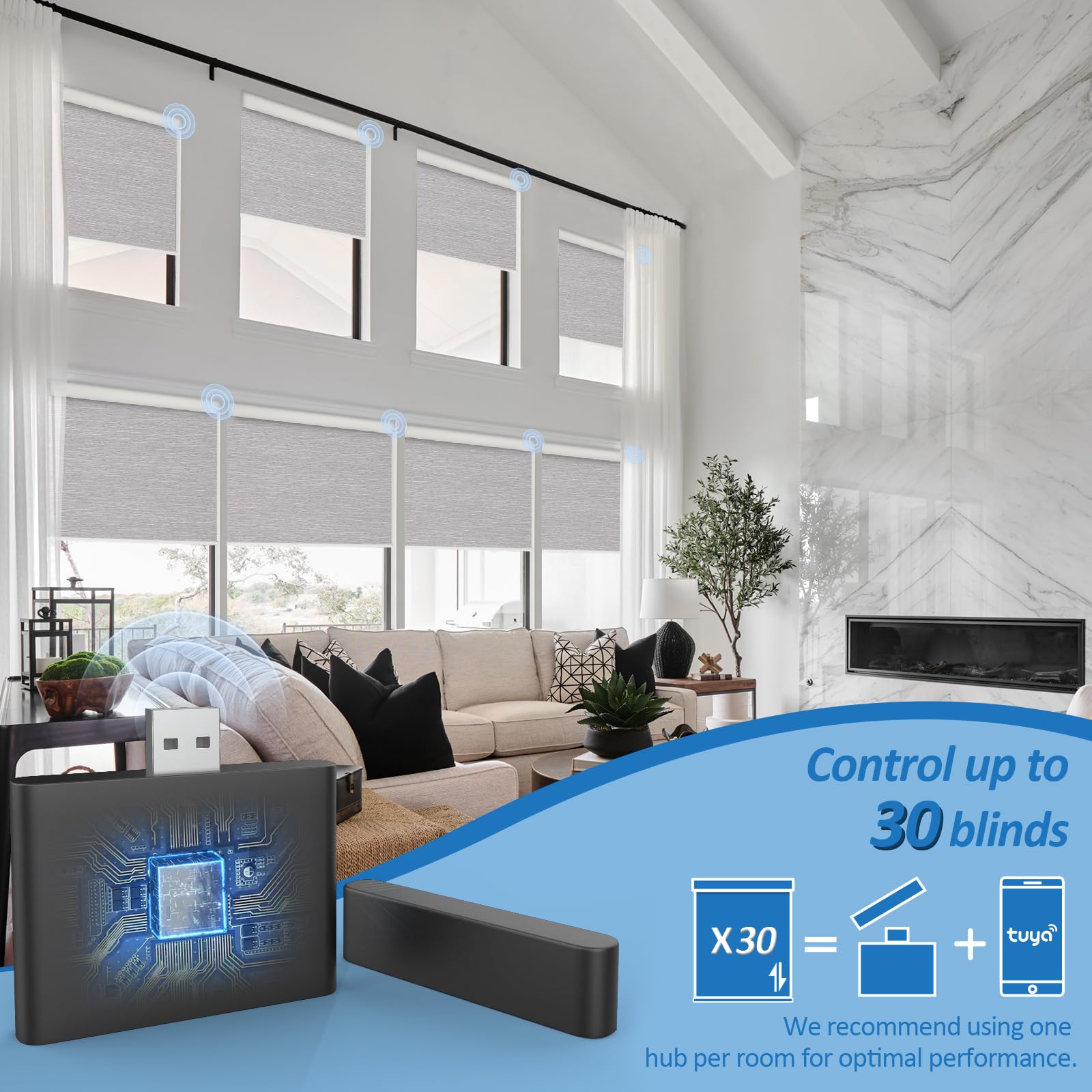
A motorized shade hub is the bridge between your window shades and the home network or smart-home app. When the app reports “hub disconnected,” the shade motor may still have power and may still respond to its handheld remote. The message usually means the bridge cannot reach the router, cloud service, or shade radio network—not that every shade has failed.
Start by checking one shade with its remote. If it moves, do not factory-reset the motor. You can usually restore the hub in 5 to 15 minutes by working from power to network to app. World Wide Shades recommends recording your shade names and favorite positions before changing settings, especially when several rooms share one hub.
When you want a reliable system from the start, use the World Wide Shades builder to plan motorized shades, power options, and control compatibility together. A correct motor and hub match prevents many “disconnected” symptoms later.
Diagnose the Failure Before Resetting Anything
Unplug the hub for 30 seconds, then reconnect it to the original USB adapter or power supply. A hub that never shows a status light may have a failed adapter, a loose cable, or an outlet controlled by a wall switch. Test the outlet with a lamp and avoid substituting a low-output phone charger until the hub’s required voltage and amperage are confirmed.
If the light returns but the app still says disconnected, the hub is receiving power and the next suspect is connectivity. If the light flashes in a repeating pattern, photograph it before resetting; light codes vary by manufacturer and can distinguish pairing mode from a network error.
The most common trigger is a changed Wi-Fi name, password, router, or security setting. Many shade hubs use 2.4 GHz Wi-Fi for range and low power, while a phone may be connected to 5 GHz. During reconnection, temporarily disable band steering or select the router’s 2.4 GHz network if the setup screen does not find the hub.
Also check whether the router has internet access and whether a recent update created a guest network. A hub on a guest network may be isolated from the phone or from other local devices even though the network icon looks normal. If you recently replaced the router, expect to reconnect the hub; it cannot infer the new credentials from the old network.
Try the physical remote or the shade’s wall control. One shade that moves proves the motor has power, but it does not prove the hub can see it. If every shade works from a remote and none works in the app, focus on the hub. If one shade fails everywhere, focus on that motor’s battery, limits, or radio pairing instead.
For motor basics, compare control choices in our smart home motorized shades setup guide. Replacing a battery will not fix a router credential problem, so isolate the layer first. If Alexa or Google Home is part of the plan, review motorized shades with Alexa and Google Home before changing the bridge; focus on the connection layer instead.
Safe Reconnect Sequence
Follow this order so you do not erase working shade assignments.
- Wait two minutes after power-up. Some bridges boot, obtain an IP address, and reconnect to the shade radio network in stages.
- Force-close and reopen the app. Sign out only if the app shows an account or authentication error; a stale screen can preserve an old offline status.
- Check the hub’s network. In the manufacturer app, open hub settings and confirm the Wi-Fi name, signal strength, and last-seen time.
- Reconnect without deleting the home. Choose “change Wi-Fi,” “repair connection,” or the equivalent—not “remove home” or “factory reset.”
- Use 2.4 GHz during pairing. Keep the phone within 6 to 10 feet of the hub and enter the password carefully, including capitalization.
- Allow local-network permissions. iOS and Android can block device discovery when local-network, Bluetooth, or nearby-device permissions are disabled.
- Test one shade. Raise it to 25%, lower it to 50%, and return it to its saved position. A partial-position test verifies two-way communication better than a single open command.
- Test the smart-home platform last. Once the manufacturer app controls the shade, refresh or relink Alexa, Google Home, Apple Home, or the hub integration.
If the app asks to hold a pairing button, hold it only for the specified number of seconds. A short press may wake the hub; a long press can erase network credentials. World Wide Shades can help you choose the correct motor and control path before you order—contact World Wide Shades for guidance on a multi-room setup.
Improve Hub Range and Reliability
Put the hub in an open, central location roughly 3 to 6 feet above the floor, away from a metal cabinet, microwave, dense masonry wall, or electrical panel. Do not hide it behind a television or inside a closed media console. Radio range is not a guaranteed number: a wood-frame room may be easy at 30 feet, while foil-backed insulation or concrete can reduce reliable range dramatically.
For a two-story home, a central landing or open main-floor shelf often works better than the far corner nearest the router. Keep the hub and router separated enough to avoid cable clutter, but close enough for a strong 2.4 GHz signal. If your system supports a mesh repeater, add one only after testing the hub’s position; more network equipment creates more possible failure points.
Reserve an IP address for the hub in the router’s device list if the manufacturer recommends it. Keep the hub on the main home network, not a guest SSID with client isolation. If you use a firewall or parental-control profile, confirm it is not blocking the hub’s outbound connection or local discovery.
A practical target is at least -67 dBm Wi-Fi signal where the hub sits, though the exact threshold depends on the hardware. A speed test on the phone is not a hub test: shades use tiny control messages, so stability and reach matter more than high download speed. Reboot the router only after noting which devices are offline; a reboot may temporarily hide the original cause.
Rechargeable motors often need a charge every 6 to 12 months depending on shade size, fabric weight, temperature, and daily cycles. A weak battery can look like a connection failure when the app sends a command but the motor cannot complete it. Hardwired motors avoid charging but require planning for the power supply and cable path.
For child-safe installations, keep charging cables and any control accessories out of reach and review our child-safe window treatments. For a new build, coordinate low-voltage wiring before drywall with the recommendations in custom shades for new construction. If your restored hub is controlling glare as well as privacy, compare fabric goals in our light-filtering shades guide and energy-efficient window shades guide.
When to Replace or Escalate the Hub
Consider replacement when the hub repeatedly loses connection after a known-good router, correct credentials, close placement, and a fresh power adapter have been tested. A hub that overheats, reboots several times a day, or drops every shade at once is different from one motor with a depleted battery. Save screenshots of timestamps and status lights; the pattern helps identify whether the failure follows the network or a specific room.
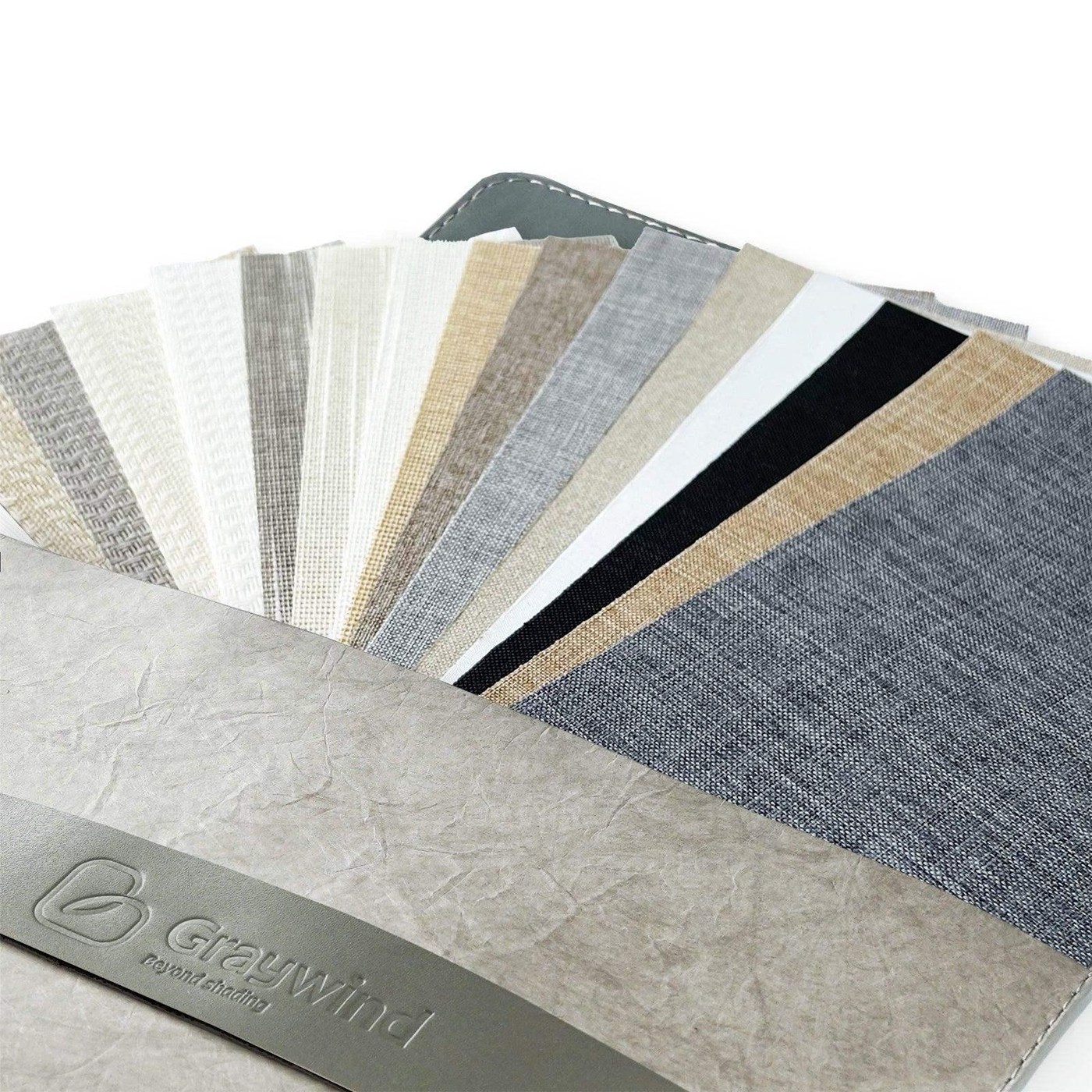
World Wide Shades can help you specify a system with the right radio protocol, power method, and shade count rather than guessing at a replacement. Browse World Wide Shades swatches to pair a replacement motor with the right fabric. Request a shade consultation and include your router model, number of shades, approximate distances, and whether remotes still work. Call (844) 674-2716 if the hub drops offline more than once a week after a successful reconnect. If you are ready to price a clean replacement, build your custom motorized shades with the room-by-room details.
FAQ: Motorized Shade Hub Disconnections
The hub may have lost its router or cloud connection while the motors remain paired to their remotes. Remote control is a local path; app control normally requires the hub and network. Reconnect the hub without resetting individual motors.
A normal 30-second power cycle should not erase settings. Avoid holding a pairing or reset button unless the manufacturer specifically directs you to do so, because a long press may remove Wi-Fi credentials or shade assignments.
Most shade hubs use 2.4 GHz because it generally travels farther through walls and supports low-bandwidth devices. Follow the hub’s manual; if setup fails on a combined network, select the dedicated 2.4 GHz SSID temporarily.
There is no universal distance because walls, metal, floors, and radio protocol change the result. Start with the hub in a central open location and test every room. A motor that works only when the hub is nearby may need a repeater, different placement, or a compatible radio system.
Contact World Wide Shades when the hub will not power up, the required app no longer supports it, or a planned installation has more shades or distance than the hub is designed to handle. Call (844) 674-2716 or use the World Wide Shades contact page with your shade count and router details.
Start with a correctly matched motorized shade plan from World Wide Shades, and ask about control compatibility before you purchase replacement hardware.