A smart shade hub can disappear from Wi-Fi while the shades themselves remain perfectly healthy. A router update, changed password, power interruption, weak signal, overloaded network, or app account issue can make a hub appear offline. The best recovery process starts with local control and power, then moves outward to the network. Avoid deleting every shade from the app before you know whether the hub is actually receiving power.
World Wide Shades helps homeowners plan motorized shades that remain understandable when the internet is unavailable. Review smart configurations with World Wide Shades, order World Wide Shades swatches for a fabric update, or contact World Wide Shades with the hub model, router change, and LED behavior. Call (844) 674-2716 when the hub controls a large project, hardwired shades, or a difficult-to-access window.
Separate the hub problem from the shade problem
Try the local remote, wall control, or manual button on one shade. If the shade moves locally, the motor, battery, and limit are probably not the first issue. If no shade responds, check power and the motor system before troubleshooting Wi-Fi. If only one shade is missing, the issue may be pairing or a local motor battery rather than the hub.
Write down what changed before the outage: a new router, Wi-Fi name, password, electrical work, firmware update, modem replacement, or a move of the hub. Note the hub’s LED color and whether it is warm, dark, blinking, or showing a pairing pattern. Send those details to World Wide Shades so support can avoid repeating steps that already failed.
Recovery sequence
Check that the hub’s power adapter is firmly inserted at both ends and that the outlet or surge protector is on. Test the outlet with a lamp if safe. Do not use an unknown adapter with a different voltage or polarity. If the hub is hardwired, do not open it; ask a qualified electrician to verify the supply.
Some hubs take 2 to 5 minutes to boot after power is restored. Wait for the normal LED state before pressing pairing buttons. Repeatedly unplugging during startup can interrupt updates or leave the device in a recovery mode.
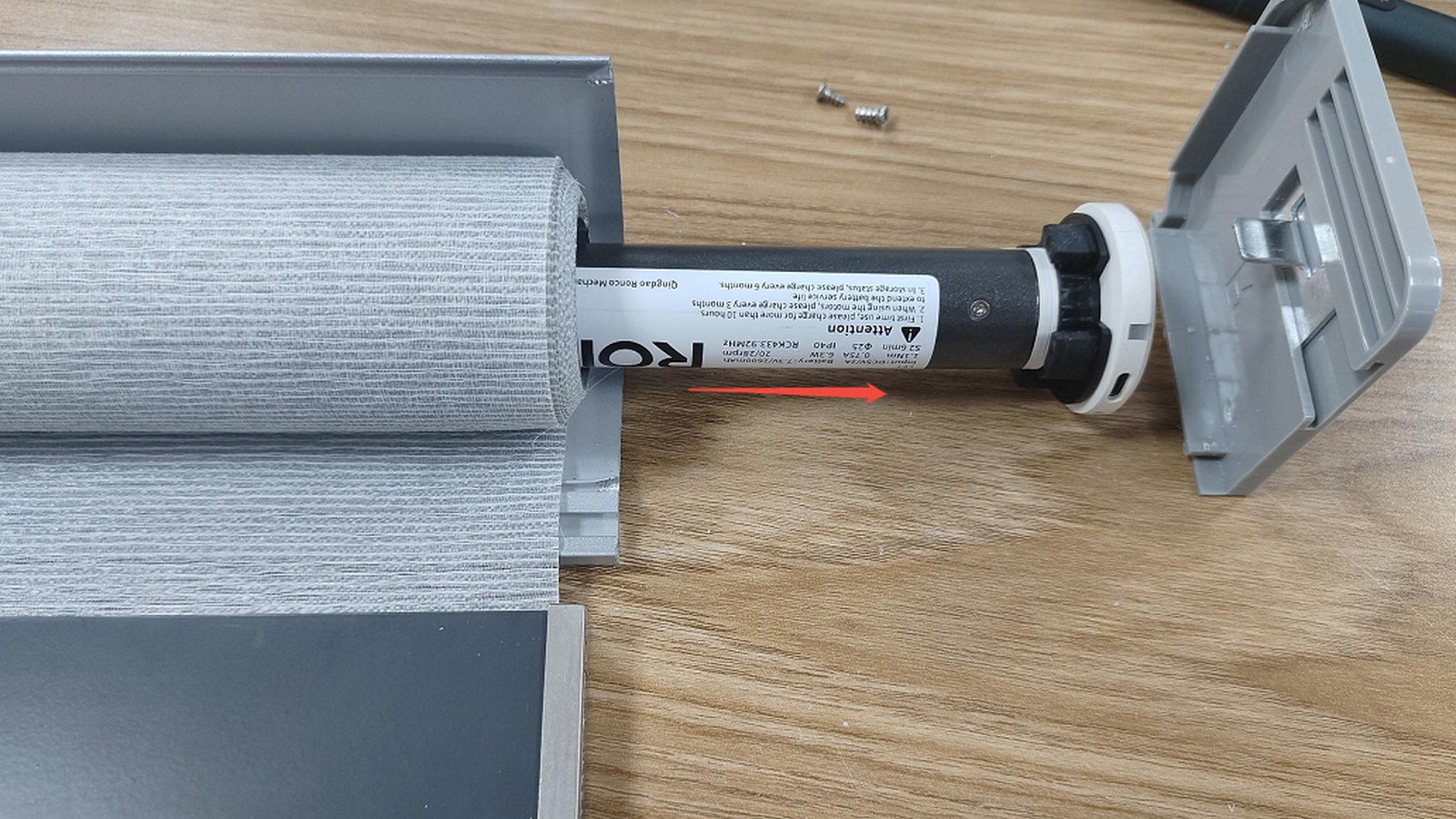
Use the original remote or approved wall control on one nearby shade. If it works, leave the shade in a safe position while you restore the hub. If it does not, check the motor battery or charger and inspect the travel path. A network reset should not be used to fix a physically binding roller.
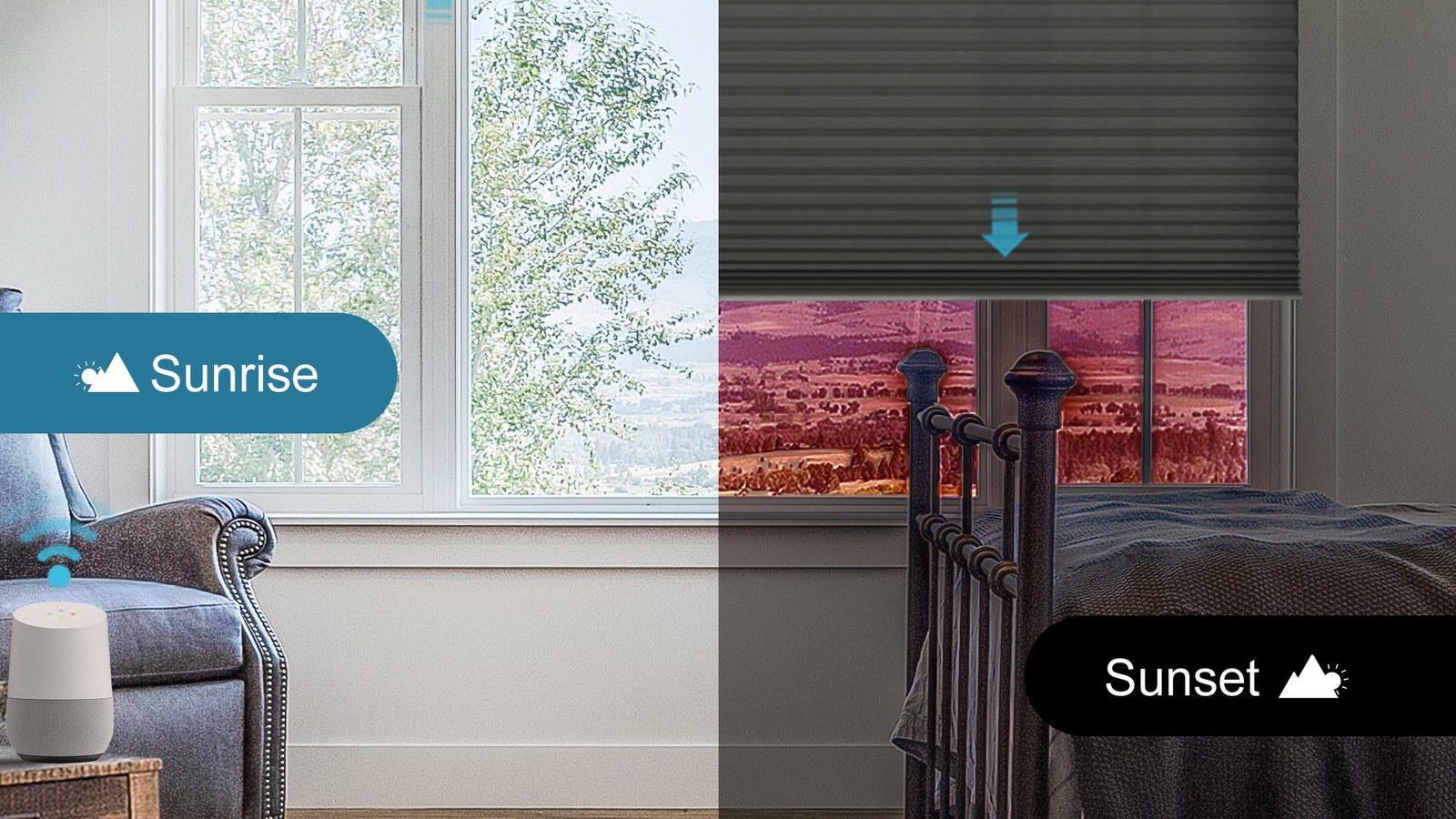
For shades with voice control, use the remote first. Voice assistants can report an old device state, and a hub may be online while one shade has a depleted battery. Review motorized shades Alexa Google Home after local operation is stable.
Many smart-home accessories require a 2.4 GHz network during setup, even when the home also has 5 GHz service. Some newer routers combine bands under one name; others use separate names. Follow the hub’s current instructions rather than assuming both bands behave the same.
Place the hub in an open, central location, not inside a metal cabinet or behind a television. A practical starting point is within 20 to 30 feet of the nearest shade, but walls, floors, ductwork, and construction materials change the result. If the hub worked until it was moved, restore the original position before changing the network.
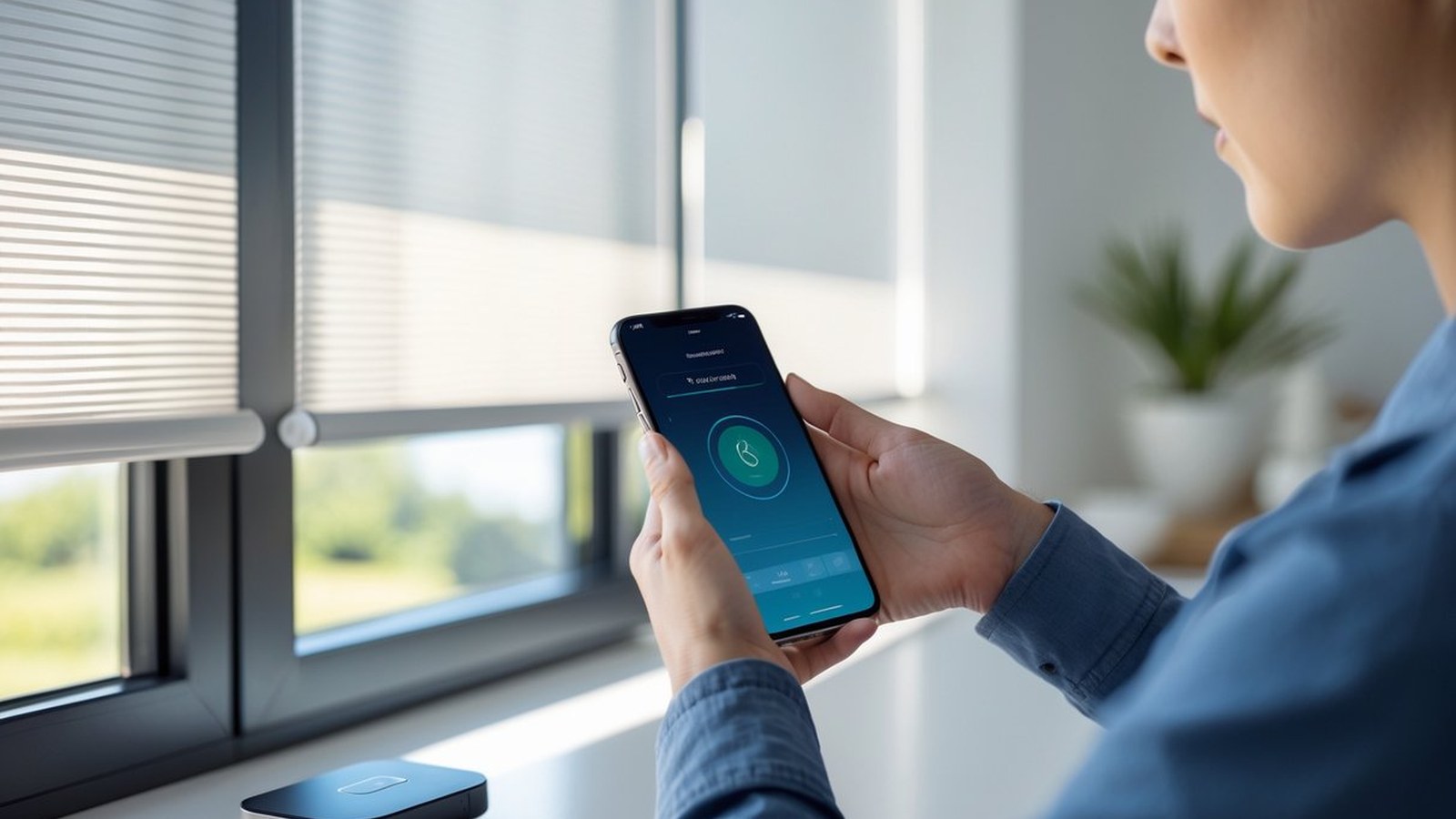
Open the current app and look for a reconnect, network-change, or hub setup option. Enter the new Wi-Fi credentials exactly, including capitalization and special characters. Keep the phone on the same network during setup and allow Bluetooth or local-network permissions if the app requests them.
Do not factory-reset the hub as the first attempt. A reset may erase shade names, groups, scenes, schedules, and limits. If the app offers a backup or export, use it. Ask World Wide Shades for a recovery plan if the project has more than a few shades or the original installer is unavailable.
If the hub still shows offline, power-cycle the modem, router, and hub in the order recommended by the network manufacturer. A common sequence is modem first, router after it is online, then hub after the network is stable. Allow several minutes for each device rather than rushing through all three.
Avoid repeatedly pressing the hub’s factory or pairing button. Button behavior differs by model, and a long press may erase configuration. Record the LED state before and after the reboot. World Wide Shades can use that evidence to narrow the next step. Contact World Wide Shades with the hub status.
Common causes after a router change
The hub stores its previous credentials; it will not automatically know a new Wi-Fi name or password. A typo can look like a hardware failure. Re-enter credentials carefully and confirm that the router has not blocked the hub with access control or guest-network isolation.
Guest networks may allow internet access but prevent local devices from seeing one another. A hub that needs local discovery or phone setup may fail there. Use the primary home network unless the product documentation specifically supports a guest VLAN or isolated network.
Mesh systems can move a hub between nodes or bands. If the hub is at the edge of coverage, it may connect briefly and disappear. Move it closer to the main node, use the supported backhaul, or ask a network professional to test signal strength. Do not place the hub directly beside a high-powered router or wireless speaker if interference is suspected.
An app update may require a new sign-in, permission, or firmware version. A hub can be powered and locally functional but unavailable in the cloud account. Check the account email and service status before re-pairing every motor. Review a structured smart-home setup.
Protecting scenes and schedules
Before a factory reset, list the important automations: open at 7:00 a.m., close west-facing shades at 4:30 p.m., privacy at sunset, or a bedroom blackout scene. Record shade names, groups, positions, and which assistant controls them. A simple text note can save an hour of rebuilding.
For privacy automations, maintain a local manual fallback. A schedule that depends entirely on cloud access should not be the only way to close a street-facing shade. Consider physical remotes for bedrooms and entries, and give household members a clear way to control a shade when the app is offline. Plan scenes in the builder and contact World Wide Shades for multi-room projects.
When to stop troubleshooting
Stop and request help when the hub is hot, smells burned, has a damaged power cable, or repeatedly reboots. Do not open electrical enclosures or use a third-party power adapter without approval. If the hub is online but cannot discover a shade, stop deleting and re-adding devices until the motor model and pairing method are confirmed.
A replacement hub may be appropriate when the hardware is discontinued, the radio is failing, or the system no longer supports the current app. A new hub may require new motor receivers, so confirm compatibility before purchase. World Wide Shades can help decide whether to restore the existing ecosystem or move to a supported control plan. Request an upgrade recommendation.
Budget and planning considerations
Network recovery may cost nothing beyond time. A replacement hub commonly falls in the roughly $100 to $300 planning range, while a full control migration can be higher if motors or receivers must change. Professional smart-home service may be billed by visit or hourly rate. The right comparison includes preserved scenes, labor, compatibility, and the number of windows affected.
If a hub controls 12 shades and three rooms, document the system before touching it. If it controls one hard-to-reach skylight, a local remote and reliable battery may be more valuable than a complex automation. Read skylight shades guide, smart home motorized shades setup, noise-reducing window shades, and best window shades for bedroom when planning a broader upgrade.
FAQ
Often, yes. A local remote, wall switch, or motor button may still operate the shade. Cloud app and voice features can be unavailable until the hub reconnects. Test local control before changing pairing.
Not as the first step. Confirm power, router credentials, network band, hub placement, and the app’s reconnect option first. A factory reset can erase names, scenes, schedules, and pairings.
The hub may still store the old network name or password, be blocked by guest-network isolation, or have trouble reaching the new mesh node. Reconnect it through the supported app workflow and keep the phone on the correct network.
Start within about 20 to 30 feet of the nearest shade in an open location, then adjust for walls and interference. The exact radio range depends on the hub and motor system. A central location is usually more reliable than a hidden cabinet.
World Wide Shades can review the model, symptoms, measurements, and control goals to help identify a practical path. Send photos of the hub, remote, motor label, and app screen through the contact page.
Restore control without losing the system
A disconnected hub is usually a network or configuration event, not proof that every shade needs replacement. Work from power to local control to network reconnect, preserve your scenes, and avoid destructive resets. Plan supported motorization with World Wide Shades, order swatches, or contact World Wide Shades. Call (844) 674-2716 for a complex hub, hardwired system, or multi-room recovery.