What “HomeKit roller shades” really means in 2026
When homeowners say “HomeKit shades,” they usually mean one of three things:
- Native HomeKit shades (they show up in the Apple Home app directly).
- Matter-enabled shades (they can be added to HomeKit via Matter).
- Shades that integrate through a bridge/hub (the bridge connects to HomeKit).
All three can work well, but reliability depends on your network, the hub method, and how you design automations.
If you want help choosing a HomeKit-friendly motorized option, World Wide Shades can guide you—start in /builder or reach out via /contact.
HomeKit prerequisites: what you need before you buy
A smooth setup starts with the right foundation.
To run automations and control devices when you’re away, Apple uses a “Home hub” (commonly an Apple TV or HomePod). Without a hub, you can still control shades locally, but schedules and remote access can be limited.
Motorized shades are surprisingly sensitive to weak coverage because they’re often installed near windows where routers aren’t.
Practical planning tips:
- Aim for strong signal where the shade motor will live.
- If you have many smart devices, consider upgrading your router or mesh.
If you’re still deciding between ecosystems, see motorized shades Alexa Google Home.
Matter vs native HomeKit vs hub-based: which is best?
Matter devices can be added to Apple Home and are designed to work across platforms.
Why homeowners like it:
- Easier cross-platform support.
- Often simpler pairing once your home network is stable.
Native HomeKit devices can pair quickly and expose shade controls cleanly.
If you’re motorizing 10+ windows, a hub can:
- Keep devices organized.
- Improve grouping.
- Reduce pairing pain compared to many individual Wi‑Fi endpoints.
World Wide Shades can help you choose the best architecture for your project; call (844) 674-2716 or use /contact.
Choosing motors and power: battery vs plug-in
Power planning is where many projects go wrong.
Pros:
- Cleaner install (no cords).
- Great for finished rooms.
Tradeoffs:
- You’ll recharge or replace batteries.
- Frequent daily automations can drain batteries faster.
Pros:
- No recharge routine.
- Good for high-use shades.
Tradeoffs:
- You must plan cord routing.
If you’re comparing long-term durability and serviceability, see how long do roller shades last.
Step-by-step: adding roller shades to Apple Home
The exact steps vary by brand, but the workflow is similar.
Before HomeKit pairing:
- Confirm the shade runs up and down smoothly.
- Set upper and lower limits (so it stops exactly where you want).
If you need installation basics, see how to install roller shades.
Some shades must be added to a brand app first.
If pairing fails, it’s often a network issue:
- Wrong Wi‑Fi band
- Weak signal at the window
- Device too far from router/mesh node
Add the shade using:
- HomeKit code, or
- Matter QR code (for Matter devices)
Assign:
- Room
- Name that matches the window location
For real daily comfort, set favorite positions like:
- 10% open (glare control)
- 50% open (balanced daylight)
- 100% open (full view)
For large windows, also consider view-preserving solar fabrics; see picture window large format shades.
Best HomeKit automations for roller shades (that people actually use)
Common example:
- Open at 7:00 AM
- Close at sunset
This improves privacy and reduces nighttime heat loss.
For energy-saving shade strategies, see energy efficient window shades.
Schedule midday partial closure on windows that create screen glare.
Pair with room-specific advice: best shades home office zoom.
Popular scene setups:
- Movie Night: close all west-facing shades + dim lights
- Bedtime: close bedroom shades + lock doors
If blackout is a priority, understand the gap tradeoffs: blackout curtains vs blackout shades.
Instead of one massive group, create:
- “Living Room South”
- “Living Room West”
This keeps automations precise.
If you’re planning shades for intense sun, see best shades south facing windows.
Reliability tips (the difference between “cool” and “everyday useful”)
If shades are far from your router, add a mesh node closer to the window wall.
If you’re adding many motorized devices, a hub-based approach may be cleaner than adding dozens of Wi‑Fi endpoints.
Use a naming convention like:
- Room + orientation + window number
This makes Siri commands more accurate.
Troubleshooting common HomeKit shade issues
Most common causes:
- Weak signal at the window
- Hub offline
- Router reboot changed IP assignments
Try:
- Reboot hub and router.
- Move a mesh node closer.
- Re-pair if needed.
Fix by swapping motor direction in the manufacturer app or recalibrating limits.
Check:
- Do you have a Home hub?
- Is the phone/home hub on the same Apple Home?
- Are permissions enabled?
If you still have trouble, World Wide Shades can help you plan a reliable system—call (844) 674-2716 or use /contact.
Getting a HomeKit-ready setup with World Wide Shades
A simple buying path:
- Decide the shade goal (blackout, light filtering, or solar).
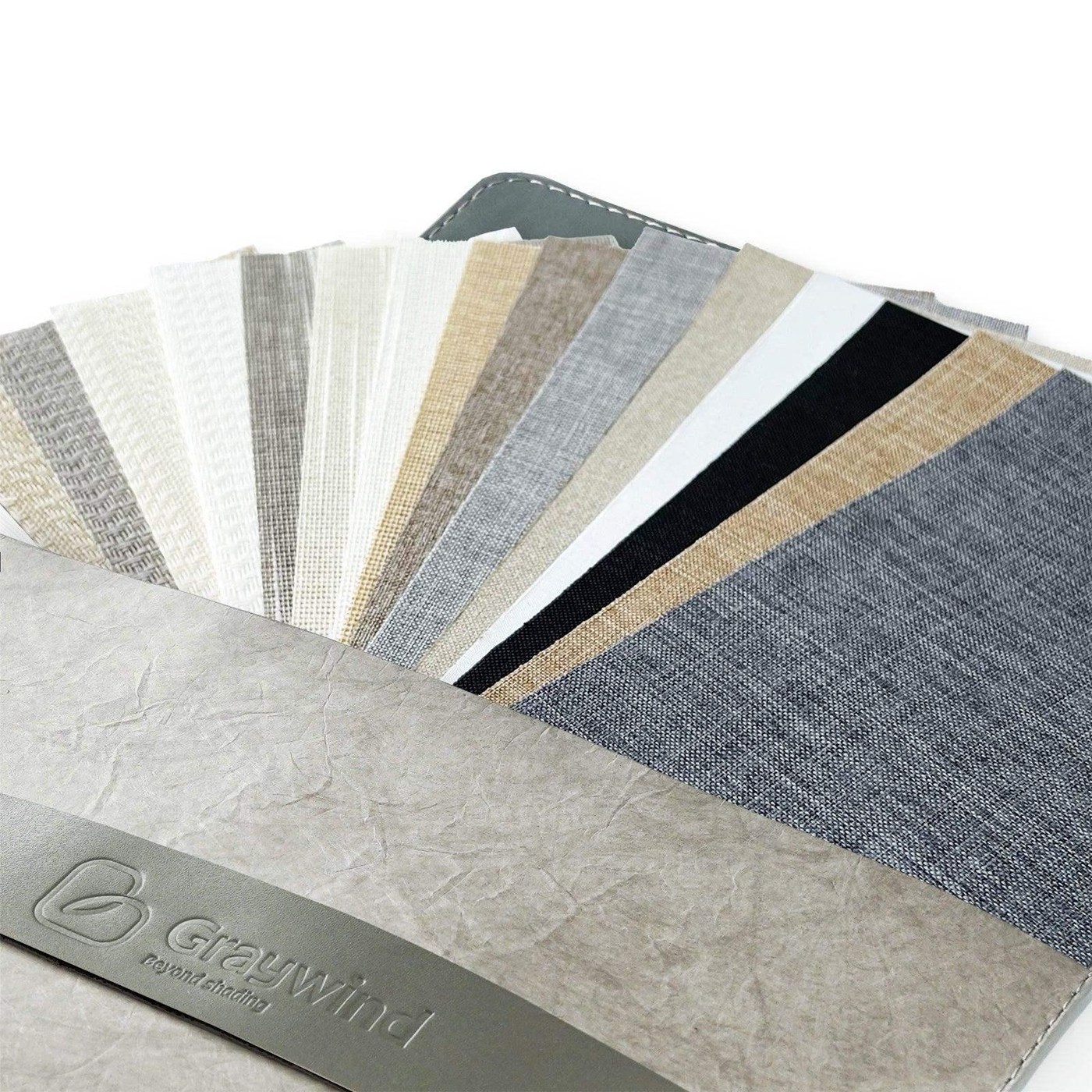
- Order World Wide Shades swatches.
- Build motorized shades in the World Wide Shades online builder.
- For system planning (hub vs Matter vs native HomeKit), contact us at (844) 674-2716 or via /contact.
World Wide Shades helps you design the hardware and the automation plan so HomeKit control stays reliable.
Advanced HomeKit automations worth setting up
Once the basics work, these are the automations World Wide Shades customers tell us they use most often — and they’re what separates a gadget from a tool you actually rely on.
Apple Home supports time-based and sensor-based automations. Pair shade automations with a temperature sensor: if the bedroom hits 78°F before 4 p.m., close west-facing shades automatically. This saves an estimated 5–8% on summer cooling costs in homes with significant west exposure.
Use “When the last person leaves home” to close street-facing shades automatically. Combined with World Wide Shades light-filtering or blackout fabrics, this gives the appearance of an occupied home while protecting privacy.
Apple Home can trigger automations based on local weather. Example: close skylight or south-facing shades when forecasted temperature exceeds 85°F. For skylight-specific guidance, see our skylight shades guide.
Siri responds to natural language but works best with consistent naming. “Close the bedroom shades” works when each shade is named after its room. Avoid putting orientation in the spoken name — keep orientation in the HomeKit room name or notes field.
HomeKit shade cost expectations
Motorized roller shades with HomeKit compatibility from World Wide Shades typically run:
- Standard motor with HomeKit bridge: $350–$600 per shade
- Native HomeKit-compatible motor (no bridge needed): $450–$750 per shade
- Matter-over-Thread motor (newest standard): $400–$700 per shade
- Required Apple TV or HomePod hub: $99–$199 one-time (most homeowners already own one)
Whole-home automation projects (8–12 windows) typically run $4,000–$8,000 installed. For a project estimate, call (844) 674-2716 or use /contact. Our motorized shade cost guide breaks down pricing in more detail.
Common HomeKit shade mistakes
- Buying “Works with HomeKit” shades without checking for a hub. Some shades require a brand-specific bridge to talk to HomeKit. Read the spec sheet carefully.
- Putting a router in a closet far from windows. Motorized shades need good Wi-Fi or Thread coverage at the window. Plan signal strength before buying.
- Skipping the test phase. Set up one shade first, test for two weeks, then commit to the rest of the house. World Wide Shades can ship a single shade for testing before you order a full project.
- Mixing too many smart-home ecosystems. If you also use Alexa or Google Home, stick with Matter-enabled shades for the most reliable cross-platform behavior.
FAQs: Apple HomeKit roller shades
For automations and remote control, you typically need a Home hub (commonly an Apple TV or HomePod). Without it, local control may still work but automation features can be limited.
Yes. Matter-enabled shades can be added to Apple Home using the Matter pairing method, assuming your Home setup supports it.
Battery is cleaner to install, while plug-in is better for high-use shades where you don’t want to recharge.
This is often caused by weak signal near the window, a hub that’s offline, or network changes after router updates or reboots.
Sunrise/sunset schedules, glare-control partial positions for work, and scenes like Movie Night or Bedtime are the most common.
Start in the World Wide Shades online builder and use /contact or call (844) 674-2716 for help planning your HomeKit setup.