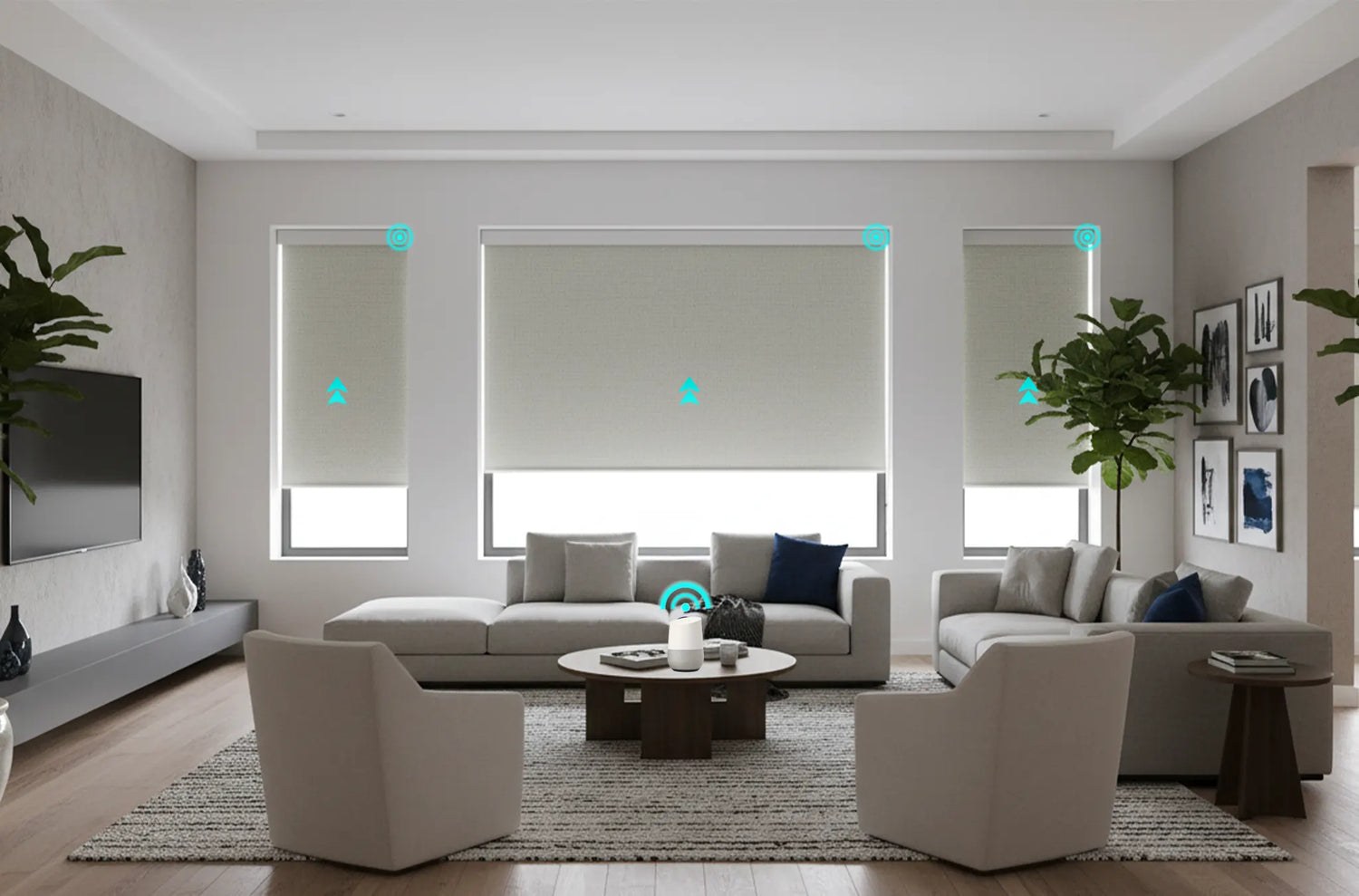
Google Home can make motorized shades easier to use, but the voice assistant is only one part of the system. The shade motor, remote, smart hub or bridge, Google Home app, Wi-Fi network, and household permissions all have to agree. The most reliable setup starts with a shade that already works from its local remote, then adds Google Home and tests one room at a time.
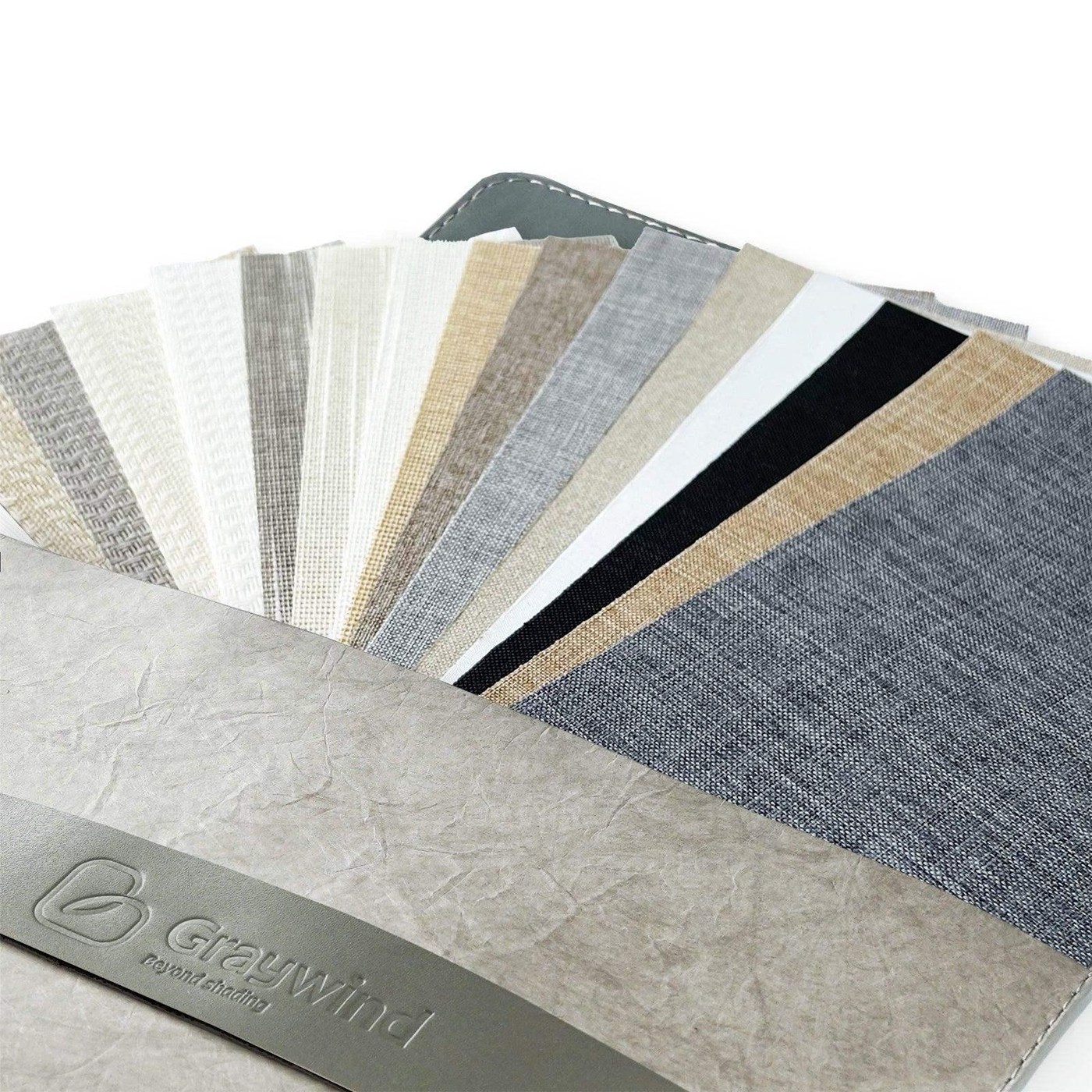
World Wide Shades can help match the motor, fabric, bridge, and control plan before installation. Configure Google Home-compatible motorized shades with World Wide Shades, order fabric swatches, or contact World Wide Shades with your current smart-home equipment. Call (844) 674-2716 if you are connecting several rooms, hardwiring power, or replacing an incompatible hub.
What you need before setup
A typical Google Home shade installation includes five elements:
- A motorized shade with a compatible radio or smart protocol.
- A handheld remote or wall control for local operation.
- A bridge, hub, or direct Wi-Fi device approved for the motor.
- The Google Home app and a stable home network.
- A room and naming plan that people in the home can understand.
Google Home does not make every motorized shade compatible automatically. A shade that works with a proprietary remote may need that manufacturer’s bridge, while another motor may connect through a supported platform. Check compatibility before purchasing a hub. The motorized shades Alexa and Google Home guide offers a broader comparison of voice ecosystems.
World Wide Shades can help you avoid choosing a fabric first and discovering later that the motor cannot fit the width or charging plan. Ask World Wide Shades to review your hardware.
Step 1: Make the local shade work first
Install or test every shade using the supplied remote. Verify up, stop, down, intermediate positioning, and the upper and lower limits. A shade that stops halfway or rolls unevenly should be fixed before smart-home setup; otherwise an app command may hide the mechanical problem. Read motorized shade stops halfway troubleshooting if a shade will not complete a cycle.
Charge rechargeable motors with the approved adapter and confirm that the charger port remains accessible. For hardwired shades, have electrical work completed and tested by a qualified professional. Keep the local remote available because Google Home depends on the bridge, network, and permissions, while the remote usually provides the simplest fallback.
If you are pairing a multi-channel remote, label each shade by room and opening before connecting Google Home. Program a multi-channel shade remote first, then use the same labels in the app.
Step 2: Prepare rooms and names
Create rooms in Google Home that match the physical home: Living Room, Kitchen, Primary Bedroom, Guest Room, and Office. Use a distinctive shade name such as “Living Room West Shade” rather than “Shade 1.” Avoid duplicate names across rooms. A voice command like “close the living room west shade” is safer than “close the shade” when several devices exist.
Use consistent directional words—north, south, left, right, or window wall—and document them. If two shades move together, decide whether they should appear as a group or as separate devices. Groups are convenient for scenes, but individual devices are useful when afternoon sun hits only one opening. World Wide Shades can map the room and window names during the design stage. Build a clear control plan with World Wide Shades.
Step 3: Add the compatible service
Open Google Home, choose the option to add a device, and select the manufacturer or service associated with the shade bridge. Follow the service’s sign-in and authorization steps, then assign each discovered shade to the correct room. Do not accept generic names without checking them against the physical windows.
The exact menu labels change as Google updates the app, so follow the current manufacturer instructions for account linking. Keep your bridge within the recommended range of the shades and router, but do not install it inside a metal cassette or closed cabinet that blocks radio communication. If a shade is missing, confirm that it works locally, the bridge is powered, and the phone is on the intended network before unlinking anything.
After discovery, test one shade. Say a simple command such as “Hey Google, open Living Room West Shade.” Confirm direction, then issue stop or a percentage command if supported. If the voice assistant reports success but the shade does not move, test the manufacturer’s app and remote to locate the failure. Contact World Wide Shades for integration help.
Step 4: Build useful voice commands
Use commands that describe the desired state, not a sequence of button presses. Examples include:
- “Hey Google, open the kitchen shade.”
- “Hey Google, close the primary bedroom shades.”
- “Hey Google, set the office west shade to 40 percent.”
- “Hey Google, close all living room shades.”
Percentage control depends on the motor and bridge. Some systems treat 0% as closed and 100% as open; others display the opposite or use “open” and “close” only. Test the percentage direction before using it in a routine. Store the expected position in your project notes.
Avoid vague device names such as “window,” “blind,” or “thing.” Clear names make voice control more predictable and reduce the chance of moving the wrong shade. For a bedroom or nursery, use a physical remote or app confirmation when privacy matters. The child-safe window treatment guide covers control placement and cord safety.
Step 5: Create routines without surprises
A routine combines a trigger with one or more actions. Useful shade routines include:
Open kitchen and living-room shades to a comfortable position after the household wakes, rather than opening bedroom shades at the same time. A sunrise trigger can behave differently across seasons, so add a time window or use a manual voice command on weekends.
Lower west-facing office or living-room shades around the time glare becomes uncomfortable. A 30% to 50% position can reduce reflections while preserving some daylight; tune the result to the fabric’s openness and window direction. Review best shades for south-facing windows for orientation-specific planning.
Close street-facing shades at sunset or when interior lights come on. Solar fabric can preserve daytime views but reveal silhouettes after dark, so use a light-filtering or room-darkening fabric where privacy is the priority. Compare light-filtering shades before assigning a universal routine.
A whole-home close command is useful when leaving, but test it carefully. Exclude a shade that must remain open for a pet, plant, or security camera. Do not create a routine that blocks an exit or closes a shade against an open door.
World Wide Shades can coordinate fabric opacity and schedules so a routine solves the real room problem. Ask World Wide Shades to design your scenes or call (844) 674-2716 for a multi-room review.
Privacy, security, and permissions
Treat shade controls as home-access controls. Review who can access the Google Home household, which phones can issue commands, and whether guests can control devices. Avoid announcing sensitive room names in a shared space. A routine called “all shades close” is less revealing than listing every bedroom device in a notification.
A shade command can change privacy instantly. Use confirmation or a physical control for bedrooms, bathrooms, and street-facing rooms if the platform supports it. Keep the bridge firmware and Google Home app current, but schedule updates when you can test the system afterward. World Wide Shades can help plan local control so a cloud interruption does not leave a shade in an unwanted position.
Troubleshoot in layers
Check local remote operation, bridge power, account linking, network connection, room assignment, and compatibility. Do not factory-reset the shade first. A bridge that is online but out of radio range may discover some rooms and miss others.
Test the manufacturer app, then the local remote. If the app also fails, inspect motor power, bridge connectivity, and limits. If only Google Home fails, unlinking and relinking the service may help, but record room names and device assignments first.
Rename devices, verify rooms, and test one command at a time. Duplicate names or stale devices can cause this problem. Delete old devices only after confirming they are not linked to a live motor.
Check the home’s time zone, sunrise or sunset location, routine trigger, and any time window. A daylight routine may shift by several minutes each day. Use an explicit time for predictable office glare and test across a week.
The remote LED troubleshooting guide can help when the local remote reports an unusual status during these checks.
Plan power, charging, and service access
A rechargeable shade still needs a charging plan. Place the port where a person can reach it without moving furniture or climbing an unsafe ladder. A battery interval is not a fixed promise: width, fabric weight, cycles, temperature, and control frequency all matter. Record the last charge and keep the approved adapter labeled.
Hardwired shades avoid routine charging but require proper low-voltage planning and service access. Do not bury a connection behind a permanently fixed valance. If a shade is very wide or heavy, confirm that the motor, tube, brackets, and fabric are rated together. Compare custom shade cost factors before selecting a complete-home package.
World Wide Shades can help coordinate smart controls with fabric, cassette, and access requirements. Order project swatches, start the builder, or contact World Wide Shades for a room-by-room quote.
Final Google Home checklist
Before considering the setup complete, test local remote control, app control, voice open, voice close, stop, percentage control if supported, room names, group commands, routines, and behavior during a Wi-Fi interruption. Check that every shade stops at the intended limits and that no routine conflicts with door access or privacy.
Save the bridge model, account owner, remote labels, charger locations, and reset instructions. A smart shade is most useful when another person can operate it without guessing. World Wide Shades can supply compatible custom shades and a control plan that remains understandable after installation. Configure your project with World Wide Shades, request swatches, or call (844) 674-2716.
Frequently asked questions
No. Compatibility depends on the motor protocol, bridge or hub, manufacturer service, and Google Home support. A shade may require a specific gateway rather than connecting directly to Wi-Fi. Confirm compatibility before purchase, and keep local remote control as a fallback.
Often, yes, although some newer products connect directly through a supported wireless standard. The correct hub depends on the motor family. World Wide Shades can help match the bridge, motor, fabric weight, and number of shades in your project.
Sometimes. Percentage commands depend on the shade motor and integration. Test whether 0% means fully closed or fully open in your system, then use a single shade before adding a percentage action to a routine.
The assistant may have sent the command successfully to the cloud service while the bridge, motor battery, radio link, or mechanical system failed to complete it. Test the manufacturer app and local remote, then check power and obstructions. Contact World Wide Shades if the shade stops halfway or rolls unevenly.
Cloud-based voice commands and many routines need the network, bridge, or internet connection. A local handheld remote may still work. Design the system with a local fallback and do not depend on voice control for emergency egress or critical privacy.
Use a room plus location, such as “Living Room West Shade” or “Primary Bedroom Left Shade.” Avoid duplicate names and vague terms. Keep the same labels on the handheld remote, project worksheet, and Google Home rooms so the system stays easy to maintain.